Improve UI by Breaking Friction into Individual Actions
When using a tool, you may find yourself thinking, “Something about this is awkward.”
That feeling alone rarely leads to an improvement.
Break the friction down into individual actions instead of treating it as an impression of the whole screen, and it becomes easier to see what to fix.
In the AI era, this breakdown can become the starting point for a small tool.
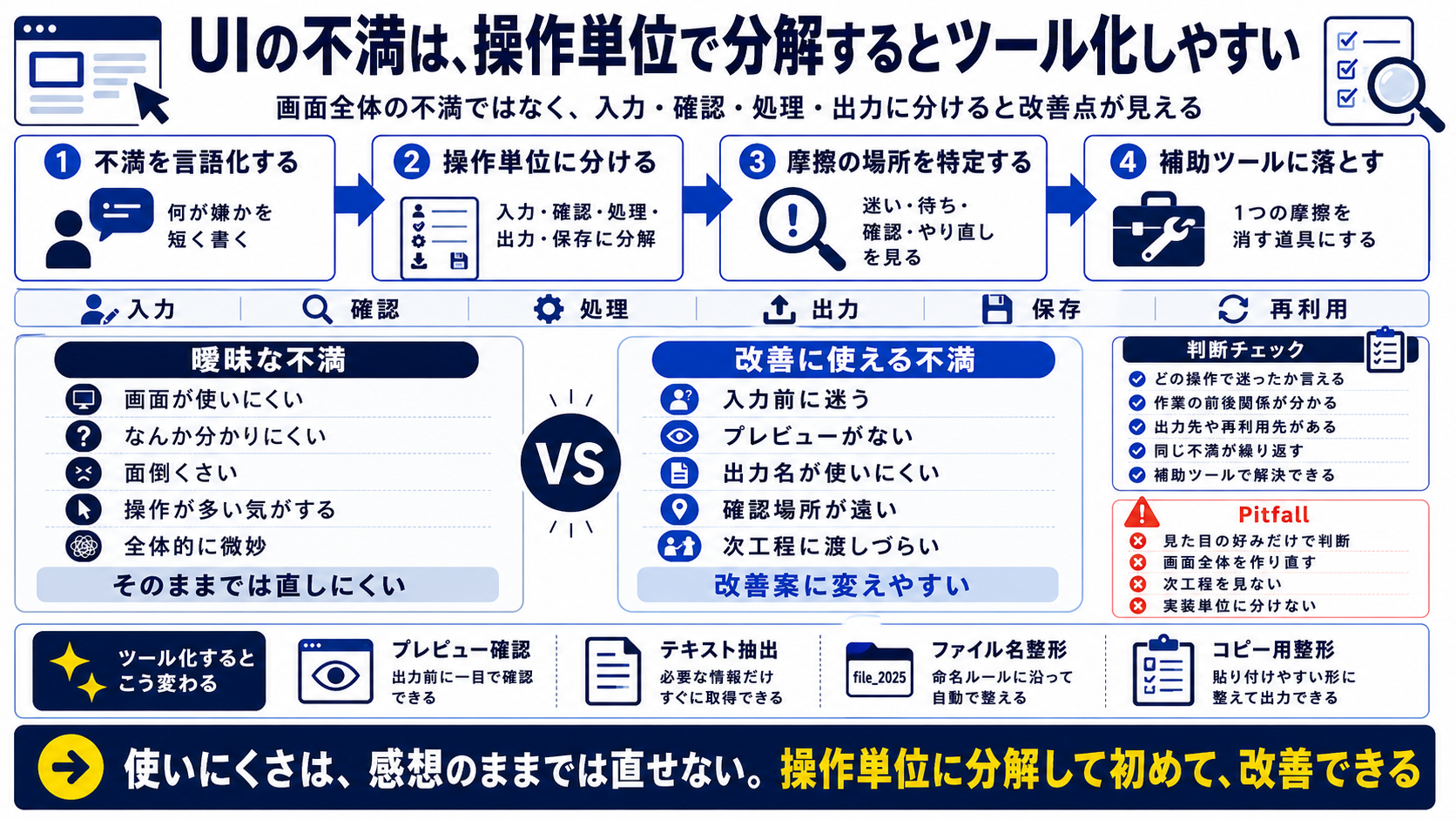
Friction is hard to fix until you break it down
Feedback such as “the screen is confusing,” “the controls are awkward,” or “it is hard to use” matters.
But those impressions are difficult for an implementer to act on as they stand.
Which input caused hesitation? What could not be checked? Which button was hard to reach? Which output was difficult to use?
Break it down by action, and a complaint becomes a problem you can address.
Looking at individual actions reveals opportunities for small tools
Rebuilding the entire interface is a major undertaking.
A tool that supports just one specific action is much easier to build.
Examples include formatting data before entry, renaming an output file, checking a preview, extracting text, or preparing text for copying.
Instead of replacing an existing tool, it can be more effective to smooth out the steps before or after it.
UX improvement means understanding the user’s workflow
An interface should be considered alongside what the user wants to accomplish and what they will do next, not just its on-screen layout.
Where will the output be pasted? Who will receive it? Which format makes it easy to reuse?
Without that context, a tool can look polished yet remain awkward in real work.
Practical UX reduces friction across the steps before and after the screen.
Give AI instructions at the level of individual actions
When asking AI to improve a tool, “make it easier to use” is too vague.
Be specific about actions: clarify an input field, show a preview before processing, generate output filenames automatically, or suggest the next step when an error occurs.
Once the request is broken down by action, AI can implement it more concretely.
This is also a UX improvement skill for the AI era.
UI friction becomes
an actionable problem when broken down by individual actions .
A different perspective on the same topic can change what you do
This is about changing how you view the work, not just making it faster. Separate the tasks people should handle from those that systems can take on to make practical decisions easier.
- The screen is hard to use
- Something feels confusing
- It is a hassle
- There seem to be too many steps
- The whole thing feels off
- Hesitation before entering data
- No preview is available
- The output filename is awkward
- The review point is hard to reach
- The result is hard to pass to the next step
A practical order for applying this idea
Turn the idea into steps for practical improvements, tool-building, and writing.
A checklist for applying the article’s ideas at work
Translate the ideas into practical checks so they do not end with reading.
Potential areas for improvement
- You can identify the action that caused confusion
- You understand what happens before and after the task
- There is a destination or reuse case for the output
- The same complaint comes up repeatedly
- A small helper can solve the issue without replacing the existing tool
Failure patterns to avoid
- Judging only by visual preference
- Trying to rebuild the entire interface
- Ignoring the next step in the workflow
- Leaving complaints too broad to implement